Showing posts with label dell 1320c color laser printer. Show all posts

Monday, August 30, 2010

Improving Faint Print or Blank Pages on the Dell 1320c Color Laser Printer

The Print Head Device (PHD) in the Dell 1320c Color Laser Printer is packaged with eight plastic ribbon-type tapes. Four of these are long tapes covering the actual print drum rollers. The other four are much shorter and cover the toner inlets at the back of each roller. If a tape breaks off and is not fully removed before installing the PHD, it prevents toner from reaching the roller, which can lead to faint printing or blank pages with no printing.
Verify the Packing Materials Have Been Removed From the Print Head Device (PHD)
1. Press the button in the upper right side of the printer and open the front cover. Open the Front Cover of the Printer
2. Turn the four PHD lock levers counterclockwise to unlock the unit. Rotate the Lock Levers to Unlock the PHD Unit

3. Remove the PHD unit from the printer.

4. Completely remove the eight yellow ribbons from the PHD unit by pulling them straight out perpendicular from the PHD unit.
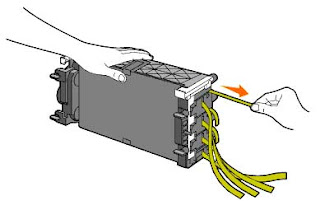

There are 8 protective tapes, 4 long ones with 4 shorter ones behind them. These must be pulled straight outward from the unit to prevent print quality issues. Make sure no fragments of these tapes remain in the PHD.
5. Insert the PHD unit until it is seated properly, and turn the four PHD lock levers clockwise to lock the PHD unit
6. Carefully remove the front protective sheet from the PHD unit
7. Close the front cover.

Monday, June 28, 2010

No Power Dell 1320c, 1320c

1. Turn the printer off.
2. Wait 10 seconds.
3. Turn the printer on.
4. Determine if the issue still occurs.

Reseat the Power Cord and Verify a Good Power Source

1. Power down the system.
2. Unplug the power cord.
3. Wait approximately 1 minute.
4. Reseat the power cord.
5. Verify that the power cord is plugged directly into a known-good power outlet.

To reset the circuit breaker, perform the following steps:

1. Locate the circuit breaker reset button and test button next to the power cord on the back of the printer
2. Using a pen or other pointed object, press the Test button. (The circuit breaker Reset button pops out.)
3. Press the circuit breaker Reset button until it clicks and is back in place.
Verify the condition of the Ready/Data LED.The Ready/Data LED on the Dell 1320c Personal Color Laser printer is located in the lower left corner of the User-Interface Control PanelThe Ready/Data LED has three states which indicate the following printer conditions:

* Steady Green indicates the printer is ready for normal operation.
* Blinking Green indicates the printer is currently processing or printing or in an error condition. * Steady Amber indicates the printer is on but in power saving mode.